How to Create a WordPress Website – A Step-by-Step Guide for Beginners

Have you heard about this whole ” making money online ” thing and wondered how to create a WordPress website to get started? Or maybe you’d like to share your personal experiences. Perhaps you’re creating a website for your business or freelance portfolio? All great options – all feasible with a WordPress-built website.
WordPress is the most popular content management system. Nearly 75 million websites use the platform for their personal blogs, business websites, and e-commerce stores. The platform is supported by thousands of developers who offer many WordPress themes and plugins.
Chances are…
If you want to create a website in 2026 – you will use WordPress.
Why?
Because installing and configuring a WordPress site is very easy – less than 10 minutes – without needing to understand the web technologies behind it. If you can copy/paste and press a few buttons, then you can create a WordPress site from scratch!
How to Create a WordPress Website: Overview
The process of creating a WordPress website is surprisingly simple. There are only a few steps to follow that shouldn’t take long. All in all, you’ll have your website up and running this afternoon.
Follow this article to the end and you’ll have a WordPress blog up and running in no time. Let’s get started.
Step 1: Purchase a domain and website hosting.
To set up your WordPress (or any other type of website), you will need two things:
- Domain Name (a web address like YourWebsiteName.com)
- Website Hosting (a service that connects your website to the internet)
Your domain name is your identity on the web, your address on the internet; it’s what people type into their browser to access your website.
There are several domain registrars, but to keep things simple, we recommend Bluehost .
Bluehost provides a free domain name when you sign up for their web hosting packages. This makes managing your new website extremely easy. It will also reduce overall costs.
You probably already have a domain name in mind. Great!
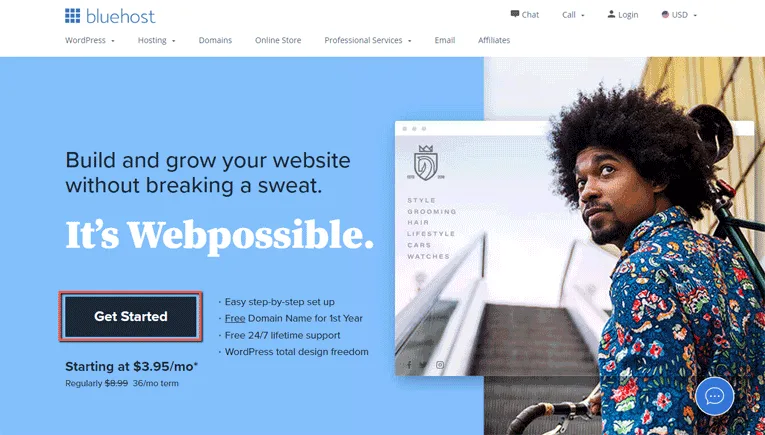
Visit Bluehost and click ” get started now ” to begin the WordPress site setup process .
Choosing a Website Hosting Plan
Bluehost offers four options – we recommend the CHOICE PLUS plan :
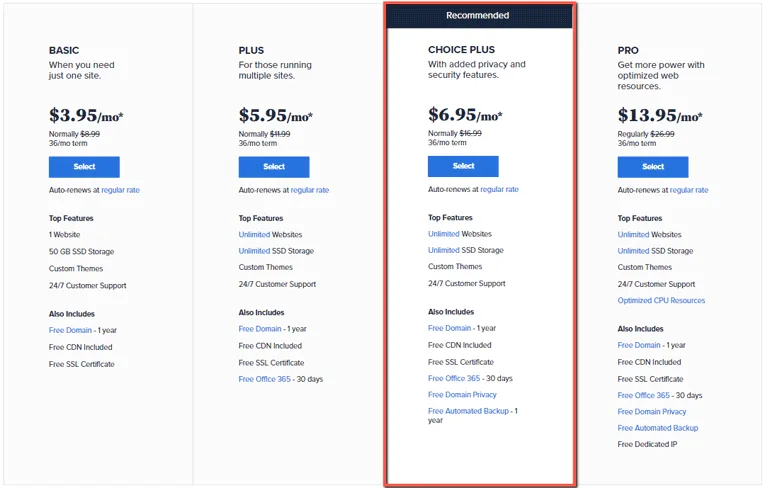
The CHOICE PLUS plan includes the essential features and benefits you’re looking for when creating a WordPress website . Primarily, the ability to host unlimited domains , unlimited web space , and unlimited traffic bandwidth .
These features offer the best flexibility when you’re creating a WordPress site from scratch – especially if you’re already thinking about setting up a second or third one!
The inclusion of email accounts, domain privacy, and automatic backups are the icing on the cake.
Select the CHOICE PLUS plan to continue…
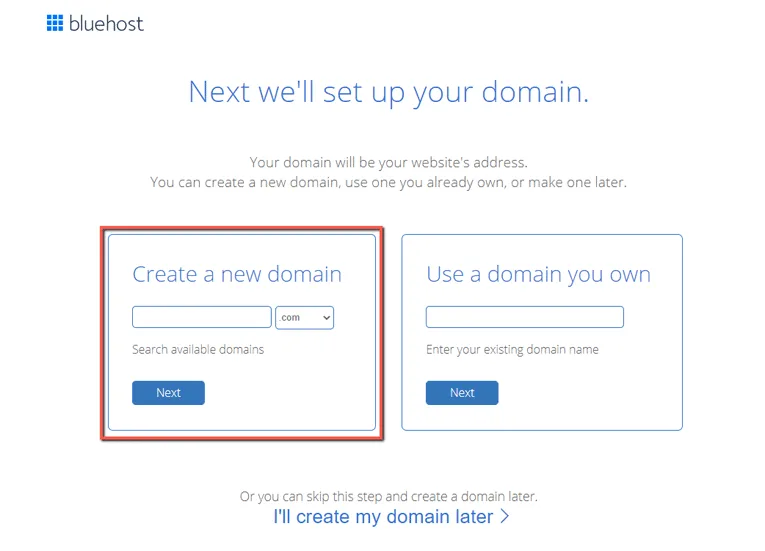
You can add a new domain through Bluehost (for free) or choose to bring one from another domain registrar (such as GoDaddy or Namecheap ). Don’t worry, if you can’t decide (or if it’s unavailable), select the “ Choose Free Domain Later ” option to deactivate it until later.
Choose Your Domain
Brandable vs. keyword-rich vs. unique domains: which should I choose? There are three typical paths when choosing a domain name:
- Brand Domain
- Keyword-rich domain
- Single domain
A brand domain name doesn’t include keywords that you’ll be targeting with your website efforts. But it does benefit from being memorable . We generally suggest using brand names because it allows you to pivot in any direction if you so choose (you’re not stuck with a specific topic or industry).
A keyword-rich domain name benefits from the inclusion of a keyword or phrase. Google has reduced this search engine ranking factor, but it’s a worthwhile investment if you’re targeting a niche . They also have an availability bonus , as many good domain names have already been purchased.
A unique name doesn’t explicitly tell an individual what you’re doing, but it does have parallels with a brand name (something possible once your website is established). These are a good choice if you’re working on side projects versus building an authority or niche website currently.
Which one should you choose?
We recommend branded domains for the reasons mentioned earlier, but also because it’s often easier to link the brand name to other platforms you’ll use to promote the website (Facebook, Twitter, etc.). Being able to “lock in” that brand name across multiple channels is better than people finding what they think is your website on social media platforms owned by someone else.
Now back to where we were…
Next, you will create your account after selecting a domain…
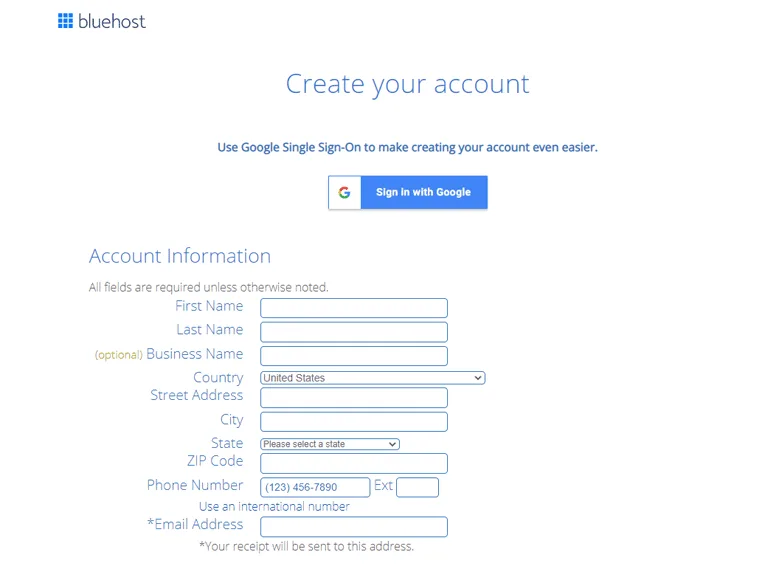
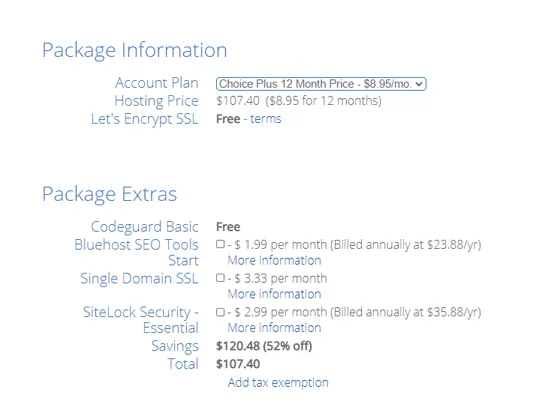
We recommend that you select the 12-month account plan . The 12-month plan has an extra cost each month. However, it will keep costs low when starting a WordPress blog .
We suggest you uncheck the extras (like SiteLock Security) for now. You can add them to your web hosting package later anyway.
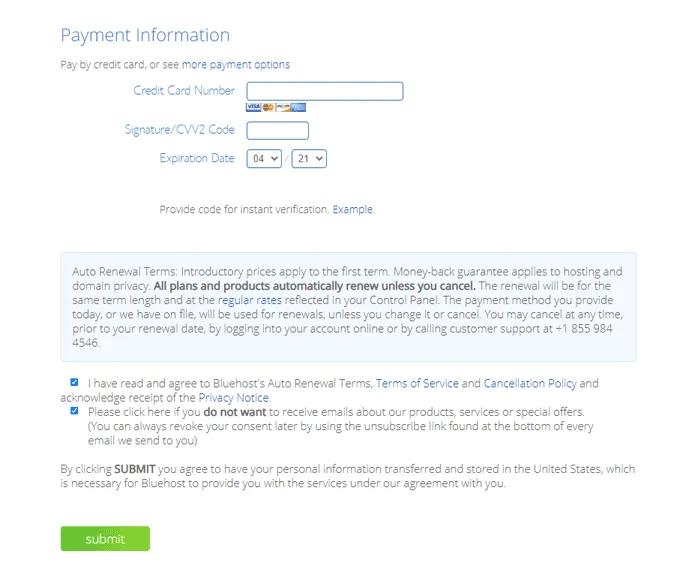
Add your payment information , verify the information, click on the terms and the contract, and click submit .
Congratulations!
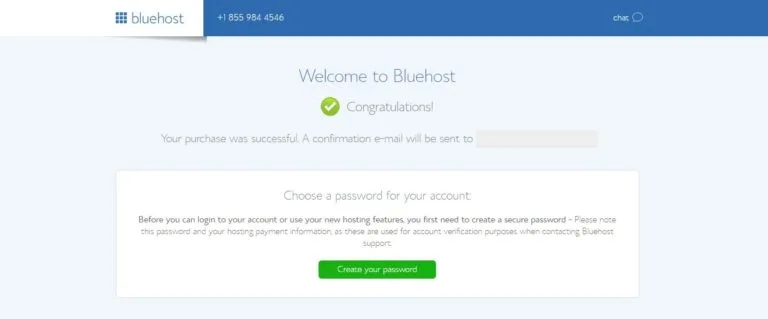
Go ahead and set that password…
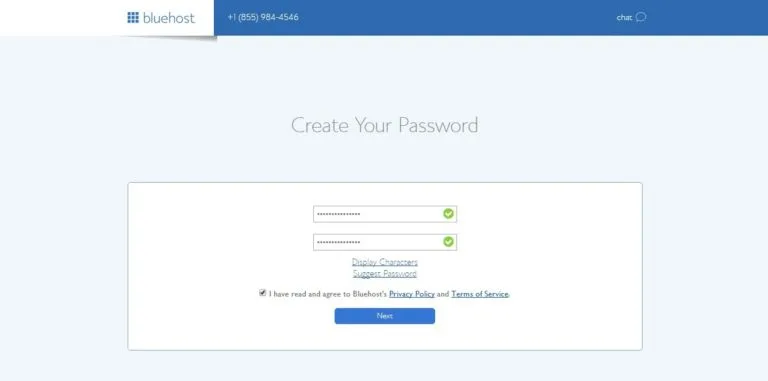
You have successfully purchased a domain name and web hosting services. You are one step closer to launching a WordPress website! Soon, you will receive an email with login details to access the web hosting backend, where you will use one-click tools to install your WordPress site.
Let’s continue…
Step 2: Install WordPress
The email you receive will contain your login information.
Two things happen:
- The domain you selected (or added) will create an installation – and you’re all set!
- You will need to set up a WordPress installation for the domain from within Bluehost.
Installing WordPress on your new Bluehost account is simple once you receive your confirmation email.
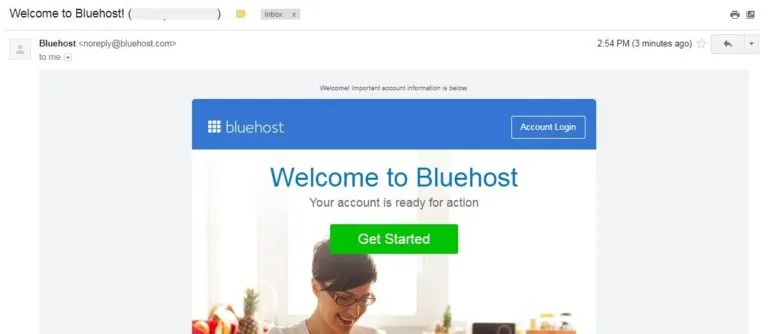
Click on My Sites and Create Site to install WordPress.

Which will take you to this screen…
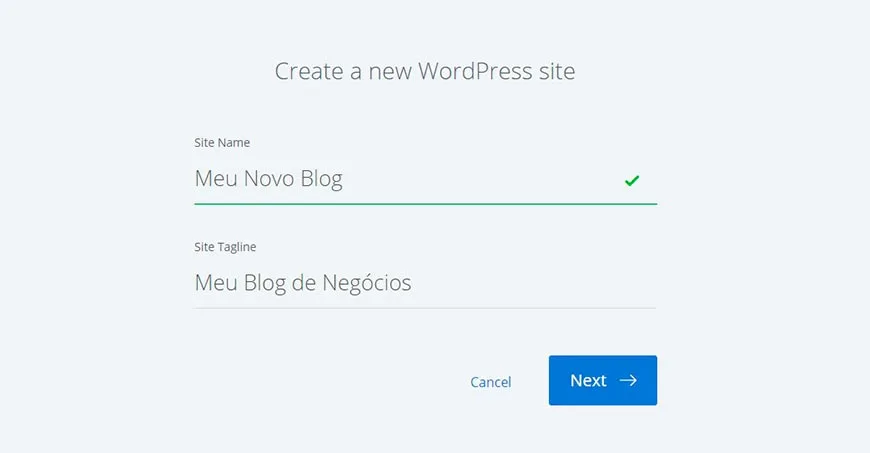
The Site Name and Site Tagline are the name and description you would like to give your website. Don’t worry if you can’t think of one right now, as you can change this once you’re fully logged into your WordPress site.
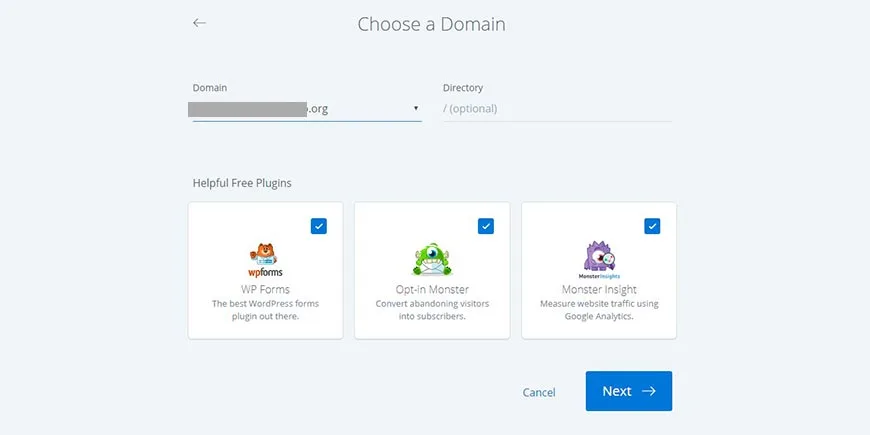
Give it some time to set up…

The installation will provide an administrator name and password.
I recommend updating these two to something more complex. This way, hackers won’t guess the details (the ‘admin’ username is very common and they try to hack it). Write this information down and keep it safe on a piece of paper that you keep with you, instead of having it accessible on your computer.
You will now have access to your WordPress site.
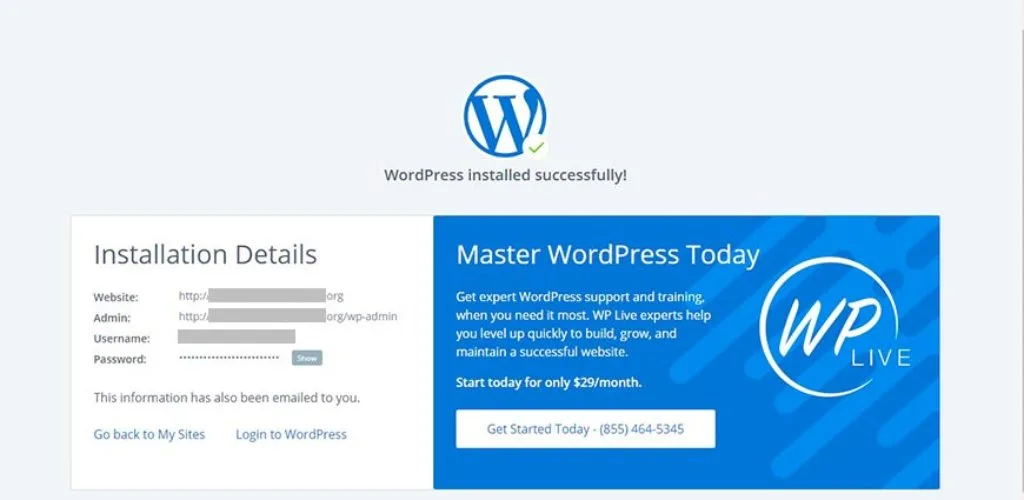
Technically, you’ve just created a WordPress website.
You can start publishing content…
… But the basic theme and structure are mediocre.
The website is not yet optimized for search engines, has poor usability, or lacks the attractive appearance you desire. Next, you will go through the process of adding unique features to the website to improve its design, security, and structure.
Moving.
Change the WordPress language
Your WordPress installation on Bluehost is configured with the language in English. We will change it to Brazilian Portuguese.
In the menu on the left side of your screen, click on Settings , and then click on the General link.
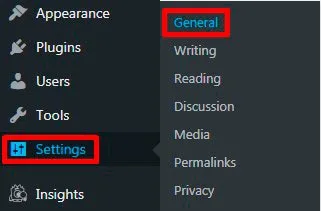
Click the dropdown menu next to Site Language and choose your preferred language.
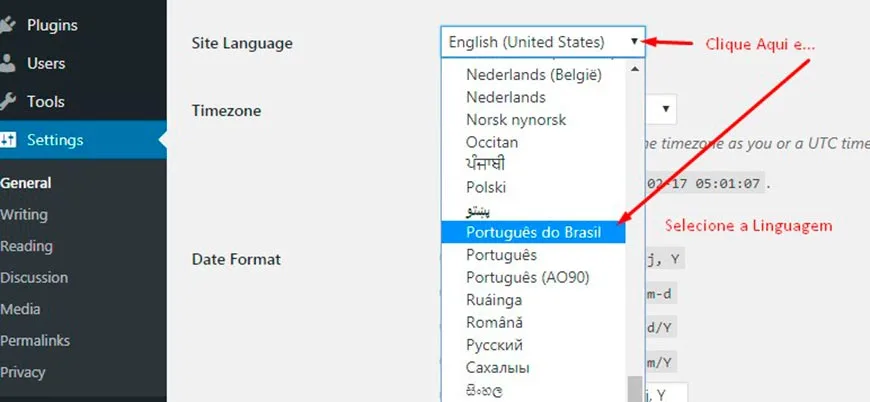
Scroll down and click the Save Changes button .
Conclusion
Now you should be able to use WordPress in your preferred language, allowing you to create, develop, and edit your website more conveniently.
Step 3: Change the WordPress theme
The default WordPress theme for your new blog is nice… but it’s too basic for your needs or intentions.
Within the WordPress marketplace, there are thousands of free and paid WordPress themes. They are categorized by popularity, featured listings, categories, and much more. It’s important to understand what you want from your new website when choosing a theme, as different theme types offer different options.
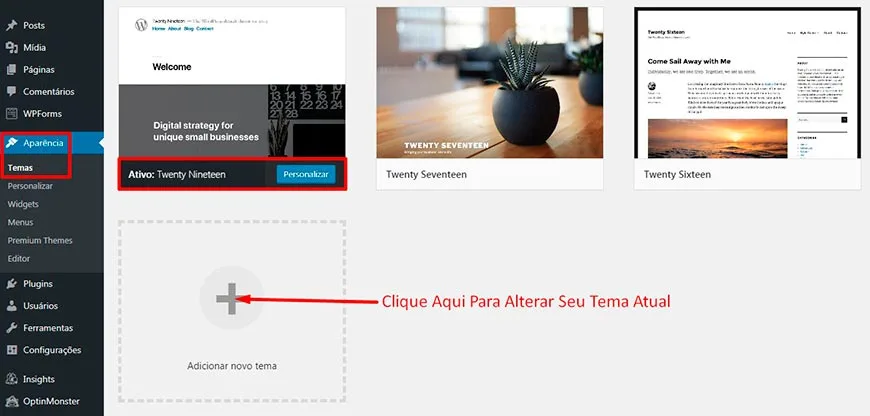
A basic WordPress theme will typically focus more on blog posts, while a magazine theme will give it the look and feel of a magazine. There are many to choose from, so take a look, apply them, and see which one fits what you had in mind when starting your website.
Access the themes by going to: Appearance -> Themes -> Add new .
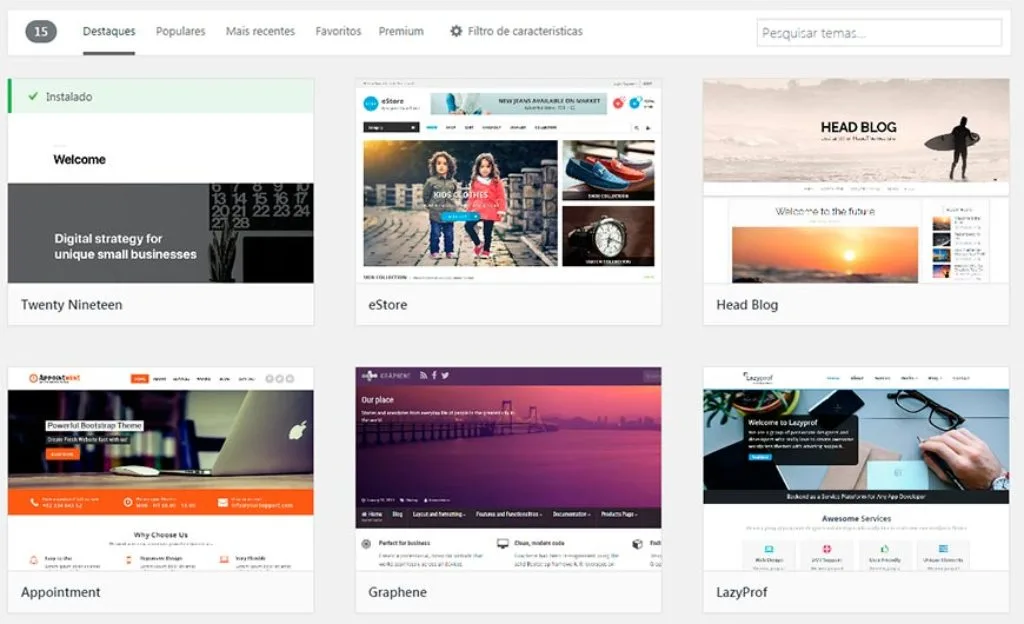
You can preview the theme to see what your site will look like. Otherwise, install the theme and apply it to start using it. The important thing is to choose one that you’re happy with and dedicate your time to the content. People switch themes all the time – it’s what you’re creating that matters.
Free vs. Premium WordPress Themes
The WordPress marketplace is the right place to select free and paid themes for your blog. Mainly because you can preview and apply them while logged in with a single click. However, the marketplace isn’t the only option. ThemeForest.com has an amazing selection of WordPress themes that’s worth checking out.
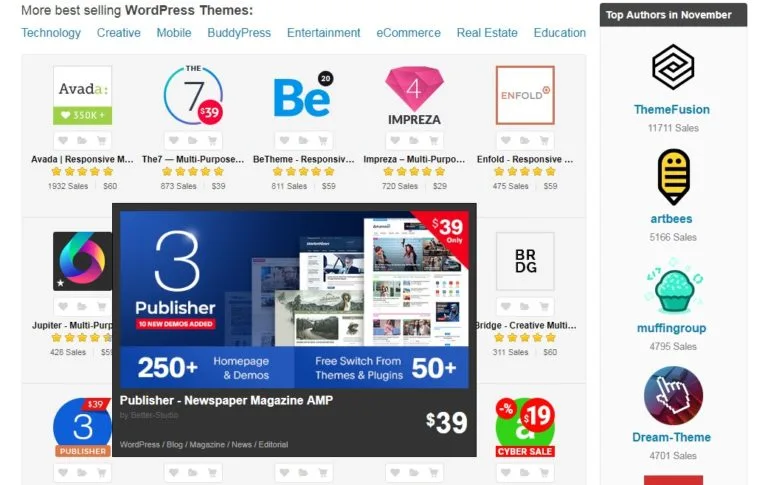
ThemeForest provides a great alternative when selecting unique themes for your WordPress website. You’ll find thousands divided into popular categories such as mobile, e-commerce, education, and more. Themes typically cost between $30 and $70, depending on their features.
Alternatively, you can choose Divi .
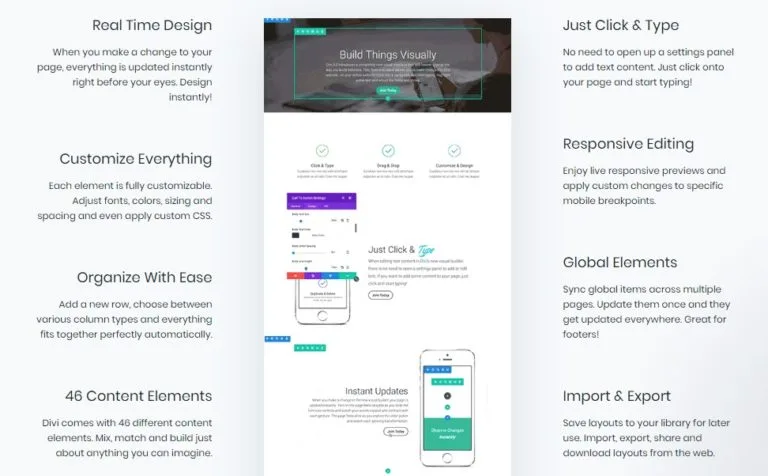
Divi is a website builder for WordPress . It offers intuitive drag-and-drop features to customize your site without needing to touch the code. Divi has child themes that designers offer to the community for free, as well as paid themes. Divi is the perfect companion for building a WordPress blog because it gives you incredible control over its appearance.
Divi is free to try and costs $89/year for access to the entire Elegant Themes catalog, which includes dozens of themes, plugins, and tutorials to improve your WordPress website.
–
Installing these custom WordPress themes is easy in the Appearance -> Themes section of your WordPress site. You’ll see an option to install a theme from your computer. Select the file you received after purchasing from ThemeForest, Divi, or other theme providers. WordPress will automatically install and configure the theme based on your choices!
There it is!
You now have a website that looks great. Feeling excited? You should be!
A theme helps build your brand and popularity . It gives you a unique look that becomes part of what you represent. It will also improve engagement with the website, making it easier to find information – and highlighting the products or services you are selling.
But:
There are still a few things to do…
Further reading: Paid or Free WordPress Themes? Which One to Choose?
Configure your WordPress installation.
Your new WordPress installation isn’t complete if you’re serious about ranking well in search engines. The default settings need to be changed – and they’re not difficult. You’re probably wondering, ” What do I do after installing WordPress? ” Come along…
Changing the structure of permalinks
Click on Settings -> Permalinks .
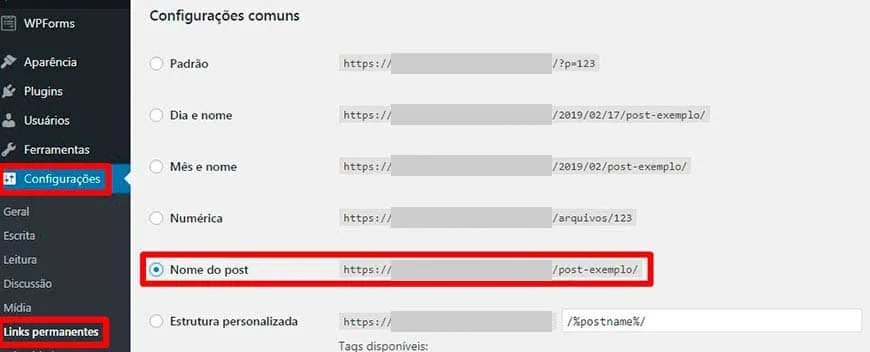
Select the post name .
Setting your permalinks to the post name will keep the URL clean. This will prevent your pages/posts from having super long URLs. This is beneficial for visitors and search engines because they are easier to read and will have the main keywords included (with some last-minute adjustments before you access the post).
Changing the name and slogan
Remember that part of the initial setup? You can go back and change the site name and slogan from within your WP dashboard if you’ve thought of something better .
Go to: Settings -> General .
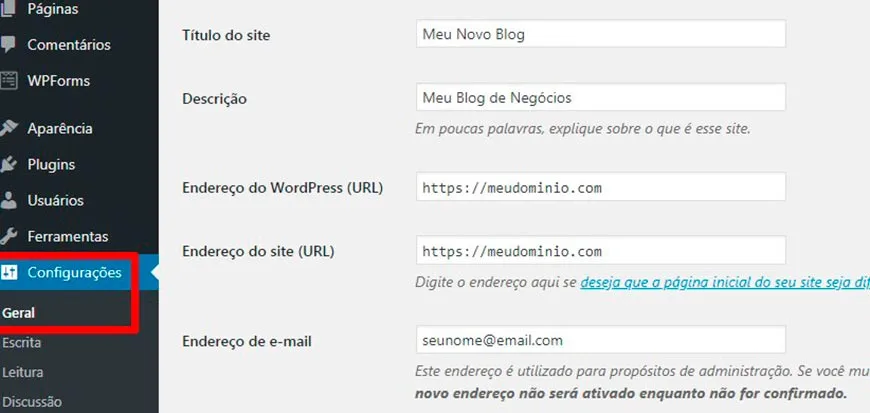
The website name is what appears when people look at the browser tab – it’s also (usually) what’s displayed if people search for your website by name. It’s important to optimize the title using your main keywords at this stage. The slogan helps users understand what the website is about – sometimes it’s displayed depending on the theme.
Time zone and date
Go to: Settings -> General .
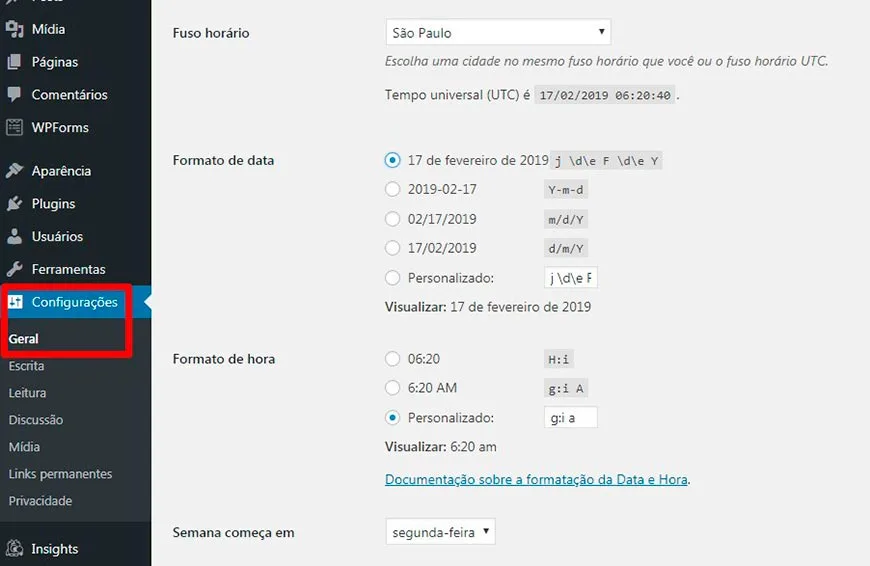
Here you will find options to change your website’s time zone and date. This is really important! This will ensure posts are published correctly if you are scheduling them , or if you are keeping multiple authors on a schedule.
Favicon
A favicon is a small image for your website that appears in the browser tab. It doesn’t do much, but it’s a nice addition to add professionalism to the site.
Locate: Appearance -> Customize -> Site Identity
Otherwise, you may have options within your premium WordPress theme that configure the favicon. Check the theme’s documentation if this is the case.
Remove the sample contents.
A fresh WordPress installation will have some default pages, posts, and categories set up to help you understand the structure. Go there and check each one to get an idea of how the site works. Then, remove them, as you won’t need them appearing on your blog.
Do the following : Posts -> Hello World -> Delete and Pages -> Example Page -> Delete
It’s also a good idea to remove this sample data for security purposes. People look for these default pages when targeting WordPress sites. They are indications that the site is not finished – and may have security flaws. Don’t feel bad about deleting them!
Step 4: Create your first blog post.
We’re sure you’re eager to publish content now that you’ve gone through what’s necessary to start a WordPress site. Let’s go ahead and create your first post – to see how it’s done. Plus, learn some basic tips and tricks on how to set it up to perform well with search engines and the community.
To add a new post: Posts -> Add new .
You’ll find yourself on a page like this…
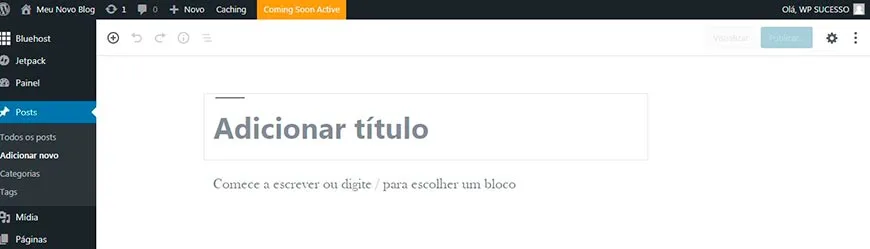
Most of the items are fairly self-explanatory, but we’ll go through each one to make sure you understand them all.
First, you have the title , which is the title of the blog post. This may look different from what is displayed to search engines if you are using an SEO plugin.
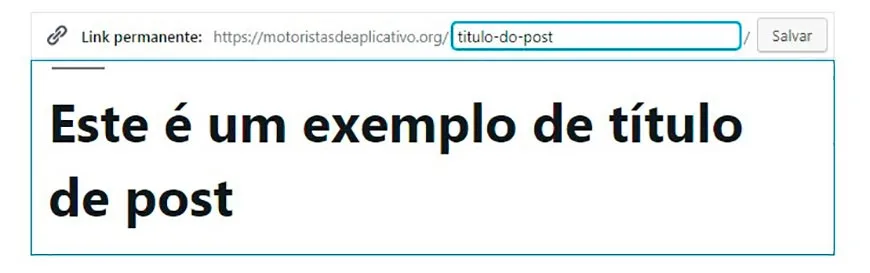
Below the title, you will find the permanent link to the blog post , which is automatically generated based on your title.
You should change the permalink to something short, including the main keywords . This makes it easier for you and web users to find. At the same time, it also improves search engine optimization to help you rank. Click the Edit button next to the permalink to make these changes.
Next, you have the blog body where you will write your content (or paste it from a text or Word file).
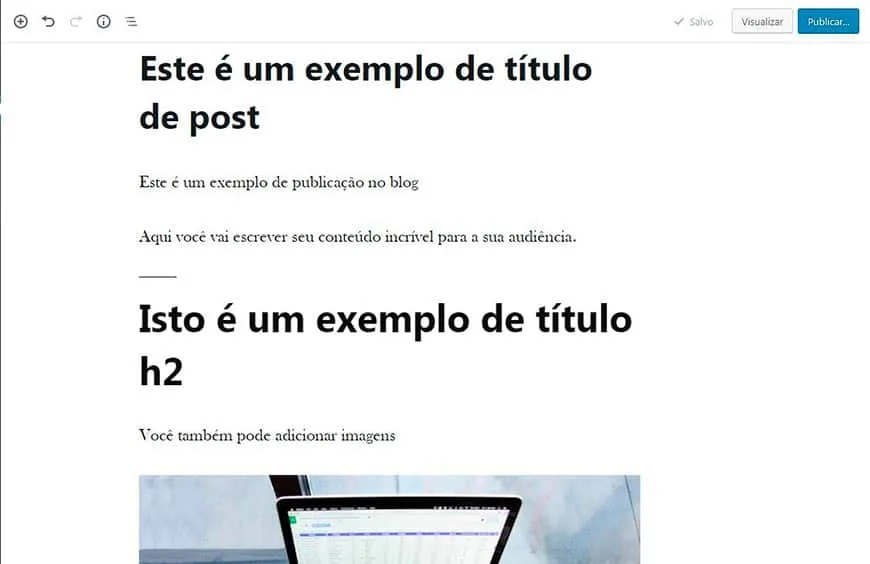
You’ll notice a set of options running along the top of the content area. This is the WordPress visual editor that allows you to make text edits, embed media, quote text, and add a variety of items to embellish your content .
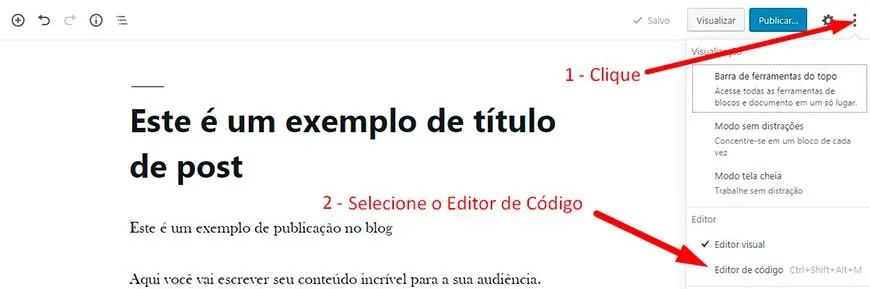
You can also choose to publish using HTML, which is available by selecting the Code Editor option .
It’s important to add a category to your post before publishing. Currently, your blog has an ” uncategorized” category , which will be the default until you configure them. Otherwise, you can select + Add New Category to add one. Additionally, you can tag the post using relevant keywords to help visitors find related content!

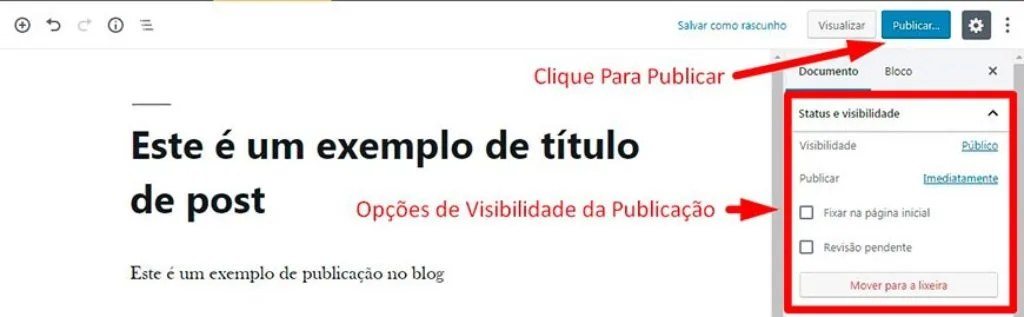
When you are satisfied with the post, select Publish and it will be published.
Very easy, right?
You’ll get the hang of it soon. We all make decent posts when we start out. Just looking back… sheesh! But you learn and improve as you go. That’s the beauty of it all!
All set? Ready to fill in the rest of your WordPress site? Great!
Our next section will cover what many other ” Create a WordPress Website ” guides tend to leave out: setting up the site so that it is… a viable website.
Step 5: Organize the site structure
Adding site structure transforms a blog into a fully functional website .
Compare the difference between a fresh installation when you set up a WordPress blog versus one that has a theme applied, custom navigation, and a unique homepage . These are the little additions that will make people say “check it out!” – they’re just as easy as the other things we’ve done.
Adding a Home Page
Go to: Pages -> Add new .
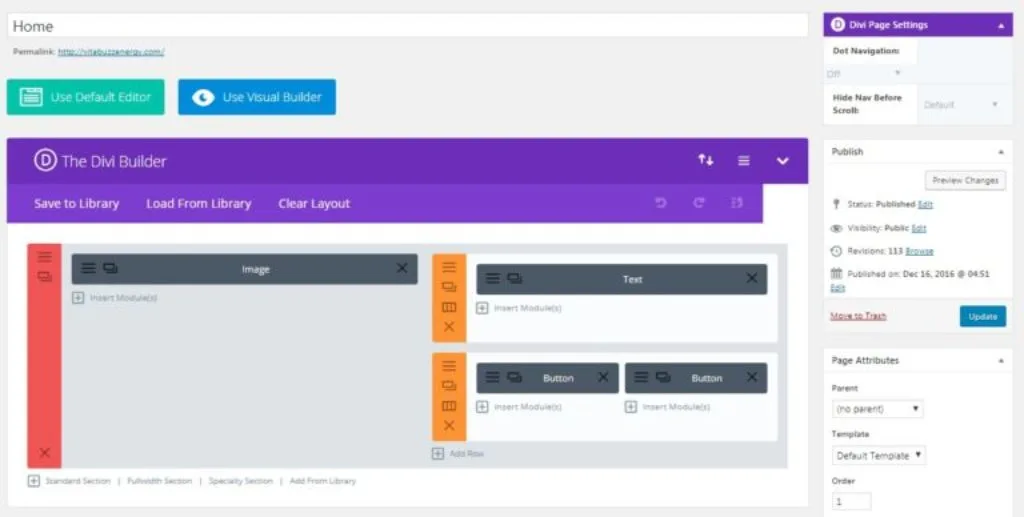
This will depend entirely on the WordPress theme you’ve chosen. Each theme has a different structure when creating a homepage – some use modifications in the WordPress Editor, others take advantage of drag-and-drop functionality.
Here’s an example of a homepage built with the Divi visual page builder …
Save the page and go to: Settings -> Reading .
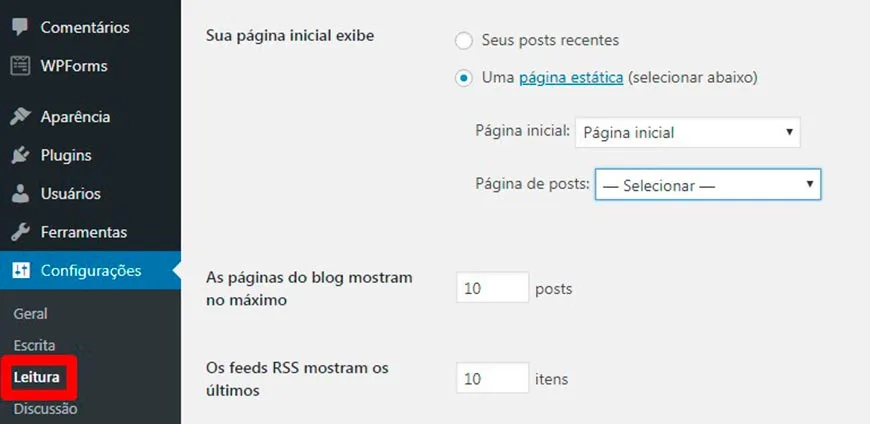
You will find the option to display the first page, allowing you to switch from your last post to a static page – which would be the homepage you created.
Check your theme ‘s documentation to find the exact steps to modify your homepage .
The homepage typically includes a featured section that usually displays the main blog post or a large piece of media and a call-to-action button to encourage visitors to explore the site. Other parts of the homepage may include social media links, contact forms, recent blog posts, and images/links to key pieces of content you want visitors to discover.
Creating Custom Navigation
Navigation is very important when you start a WordPress site. It’s easier to outline the navigation when you first start, rather than trying to make dramatic changes later .
Navigation typically looks like this:
- Start
- On
- Blog
- Contact
Although you may also want to include links to pages that share your best posts or guides .
Change this by going to: Appearance -> Menus.
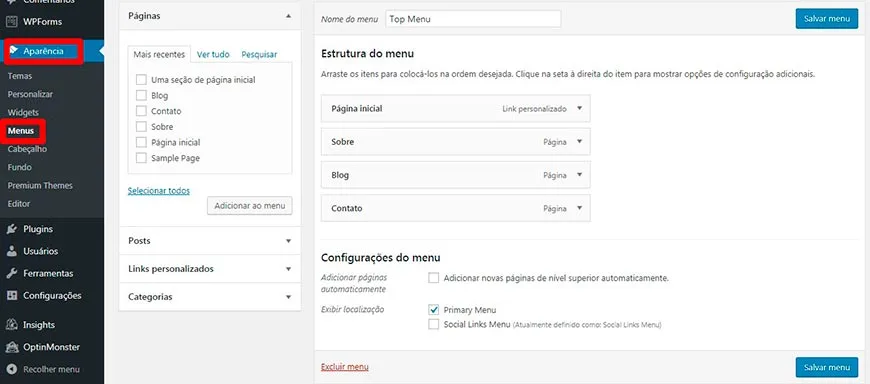
You can select from most recent pages or do an all-in-one view to see all the pages you can choose to include in your WordPress site’s navigation. Try adding a couple, save the menu, and confirm. Looks good? Nice!
Adding Categories
We’ve mentioned categories a few times already – this is how you would change them.
Go to: Post -> Categories .
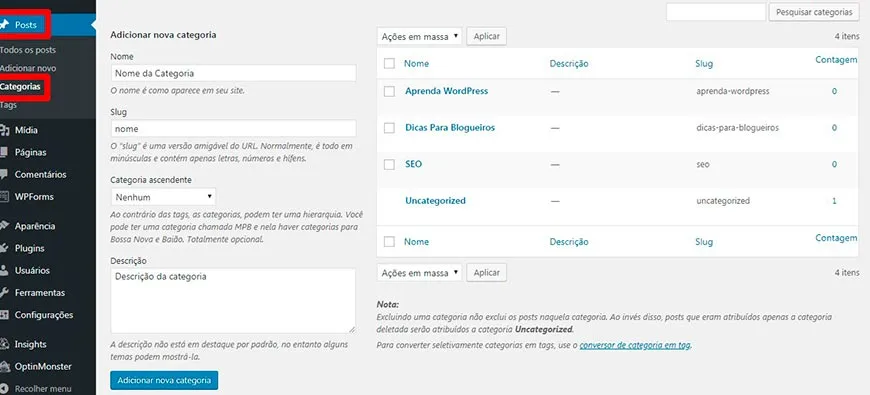
Here you can add or modify blog categories. You can also change the category slug , which you can set as a keyword (keep it to one or two words).
Try choosing categories right from the start, as changing them can disrupt navigation when you have dozens (or hundreds!) of posts on your blog. Think about what you believe are the main topics you want to discuss on your blog – then start there – but also look at your competition to see what they are using.
All other things
We don’t want to overwhelm you with too much information while helping you start a WordPress site. There’s still a lot to explore now that it’s installed. Maybe grab one or two of those WordPress courses or just play around with the design and structure.
You don’t need to worry about breaking it right now!
The blog is just starting out – traffic isn’t really coming in yet – so now is the time to experiment with everything. Keep refining it until you’re happy with it. Launch the blog and ask for feedback from friends and family. Make changes suggested by other bloggers and webmasters.
Step 6: Add useful WordPress plugins
Here we are, reaching the end of our step-by-step guide to creating a WordPress website.
There’s one last thing we want you to do before you go it alone: install WordPress plugins.
WordPress plugins add extra features to the WordPress platform – including:
- Social sharing
- Registration forms via email
- Membership
- Shopping carts
- Contact forms
…and much more!
You can find plugins here: Plugins -> Add new .
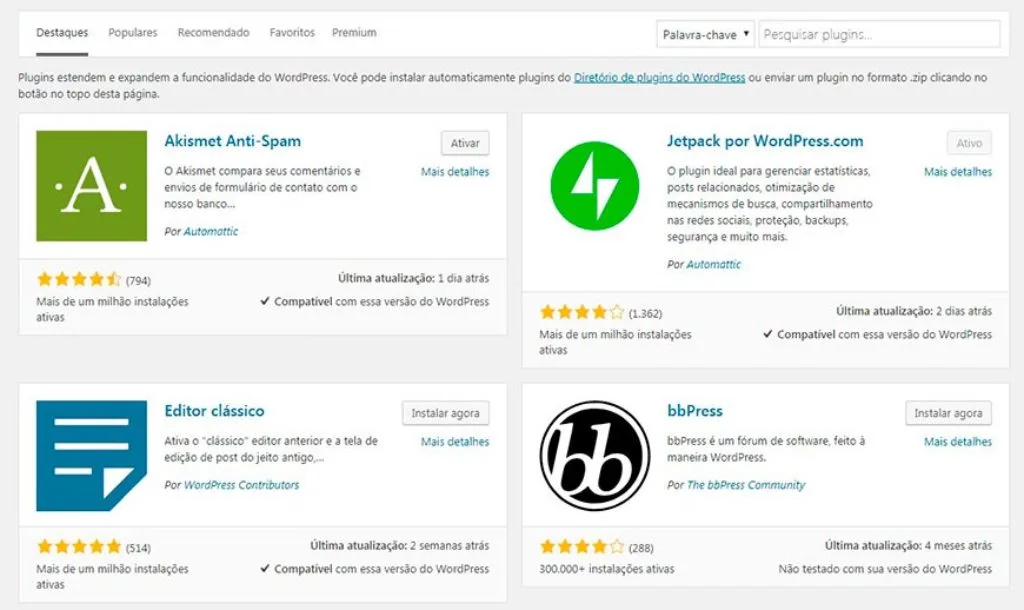
If you need a blog or don’t want to be stuck with a basic WordPress installation, then it’s likely a developer has already created a plugin. There are thousands of free and paid WordPress plugins to choose from!
The question is: which plugins should I install when creating a website with WordPress?
This is entirely dependent on your intentions and what’s already included in your WordPress theme. But the overwhelming consensus includes the following:
Akismet
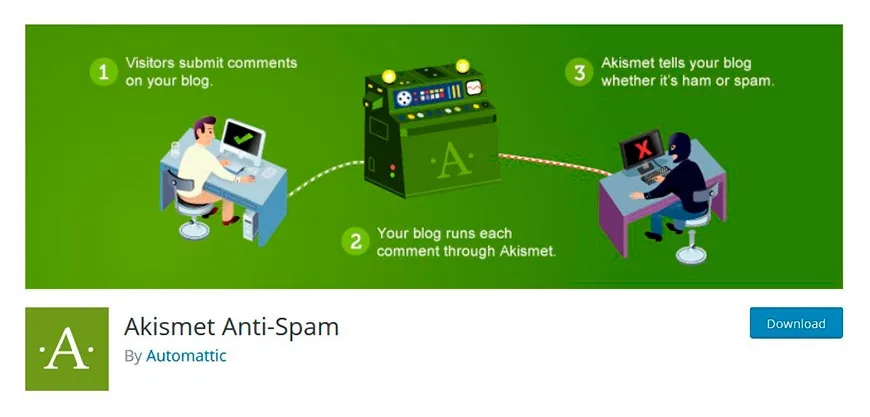
Akismet is a standard WordPress plugin to help block and prevent spam.
You will need an API key (available on the Akismet website) to activate the free plugin. It’s a stellar way to stop your site from being bombarded with fake reviews.
Yoast SEO
Yoast is a popular SEO plugin that will help you create SEO-friendly blog posts.
The plugin will guide you through best practices and allow you to define custom fields when editing titles, meta descriptions, tags, and more.
Yoast is a free version with limited features. A premium version is also available, which is worth checking out when you’re comfortable with blogging and ready to scale up your efforts.
WP Super Cache
You don’t need to know the details of WP Super Cache to understand its benefits.
This WordPress plugin creates a cached version of your blog and pages to reduce server load. Essentially, it helps prevent your blog from crashing if you experience a sudden surge in visitors.
All in One WP Security and Firewall
Websites built with WordPress are attacked… frequently.
It’s good to have security to prevent and stop attacks before they become too serious (like taking the site offline or corrupting the database!). The All in One WP Security & Firewall plugin makes WordPress security as simple as possible – install, configure, keep updated, and you’re good to go.
Finally, we’ve reached the end of our guide to creating a WordPress website.
We are proud of you!
Starting a WordPress website is a step towards an incredible journey on the web. Owning a website allows you to explore your creativity. You can use it to express your thoughts. Or turn it into a profitable website selling goods and services. It’s limitless!
We covered a lot of information in this post (almost too much )… but we wanted to make sure you had a complete overview of how to create a WordPress website. It was worth it, right?
If you’re having any trouble with the ” How to Create a WordPress Website for Beginners Guide” – feel free to leave a comment, send us a message, or visit our Facebook page to get in touch. We’re here to help you start this wonderful and exciting journey into online entrepreneurship. Oh! And be sure to subscribe to our updates, because we have a ton of great information!
Congratulations.